
I know I said I'd announce a winner to the "Should We Send Yours Truly To The Yahoo Electric Chair" Contest today, so here goes...
And the winner of the FREE $20 Metro PCS Features Card is...
I don't know!
I can't make up my mind and in the spirit of the proceedings, I'll open this up to the "court of public opinion".
I want all of you to take one second and vote for your most favorite response and the person/response with the most votes will win the prize.
Here are the contestant's entries:
Submitted by Anonymous:
Ignorant choices of words to attract traffic to your blog my friend. It's quite obvious they are going after you simply for saying "visit my site for hacks."
Submitted by KumbiaKid:
LMAO!!! You EVIL hacker!! I think you probably made the Federal Watch List with that one! Yahoo blows and they can kiss my A**! The only reason they are messing with you is cause Google owns your blogsite. Good luck and if they refuse to reinstate your account start another blog just to annoy the hell out of them! I'll be your first follower AGAIN! Yahooooooooo SUUUUUUUCKSSSS!!
Submitted by jo's art:
I most definitely agree with KumbiaKid. Yahoo freakin sucks monkey balls. They're just gealous they don't have the amount of following Google does. I hate beaurocratic hypocrits!Damn pencil pushers... I won't name any names for the sake of Yahoo... oops... hahaha! I think you most definitely should start up another blog just to piss them off. Dare I say; I demand it! I have spoken, so shall it be... hehehe All seriousness aside... Keep doin what ya do. Love the blog. I can't wait to get my Sam Code and it's all to your persuasive commentary sir! I'd kiss ya... but I can't,so I won't. ;p Ciao! Have a nice night guy!
Here are some pointers on how to pick the winner:
Pick the answer that best meets the original contest rules---see below for a copy:
* Posts a reply to this article in the section provided below (any replies that are attached to any other articles other then this one will not be considered).
* Answers the final verdict question correctly (will Yahoo find me guilty or innocent after they get the message I have written above).
* Provides the most thoughtful, detailed and articulate answer (I don't care if you agree or disagree with me).
So, who will it be---Anonymous, KumbiaKid or jo's art?
You tell me by typing the name of your favorite poster below in the reply section.
Tuesday, February 2, 2010

Friday, January 29, 2010
m.Tip: Do You Want To Improve Your Battery Life (Part 2)?
Continuing where we left off from the previous article (see Do You Want To Improve Your Battery Life? for further details), this lesson will give you additional lessons on how to improve the battery life for your Samsung Code.
IV. Adjusting The Back Light Timing
1. Press the Left Soft Key to select Start -> Settings -> Power Management.
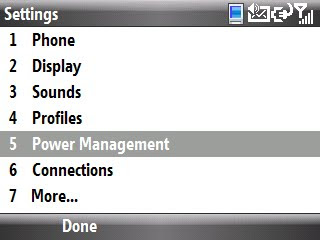
2. Scroll to the Backlight time out click thru menu and change the settings from Never (or whatever you have it set to) to 5 or 10 seconds.
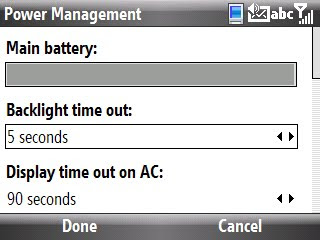
3. Press the Left Soft Key to select Done.
V. Adjusting The Display Time Out
1. Press the Left Soft Key to select Start -> Settings -> Power Management.
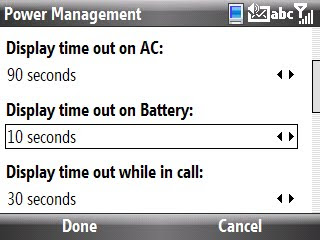
2. Scroll to the Display time out on Battery click thru menu and change settings to 10-15 seconds.
__________________________________________________
Do you want to see more tips like this one? Check out the m.Tip Library to find all the m.Tips in one convenient place.
IV. Adjusting The Back Light Timing
1. Press the Left Soft Key to select Start -> Settings -> Power Management.

2. Scroll to the Backlight time out click thru menu and change the settings from Never (or whatever you have it set to) to 5 or 10 seconds.

3. Press the Left Soft Key to select Done.
V. Adjusting The Display Time Out
1. Press the Left Soft Key to select Start -> Settings -> Power Management.
2. Scroll to the Display time out on Battery click thru menu and change settings to 10-15 seconds.

__________________________________________________
Do you want to see more tips like this one? Check out the m.Tip Library to find all the m.Tips in one convenient place.
m.Tip: Do You Want To Improve Your Battery Life?
I decided to take a deeper dive in this article then I originally did [see m.Tip: The Six Things You Can Do Right Now To Improve Your Battery Life (Without Buying Or Installing A Thing) for further details] and provide specific instructions on how to extend the battery life of your Samsung Code.
I. Shut off Bluetooth when you aren't using it.
1. Press and hold the Lock Key to access the Quick List menu.
2. Scroll to the Wireless Manager and hit the Left Soft Key to choose Select.
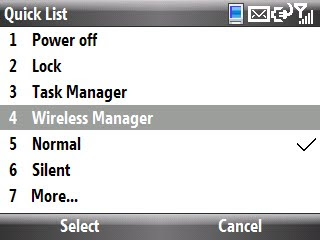
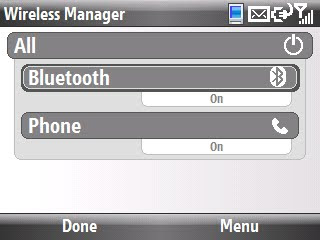
3. If Bluetooth is ON, it will look like this:
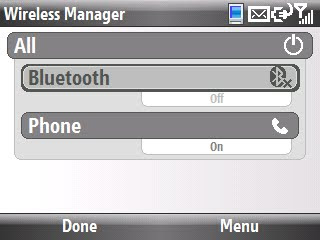
4. To shut off Bluetooth, scroll to Bluetooth and press the OK Key.
II. Shut down your Bluetooth Receptivity when not in use.
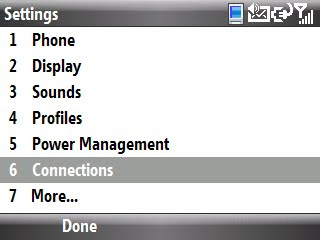
1. Hit the Left Soft Key to select to Start -> Settings -> Connections.
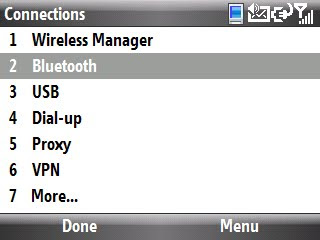
2. Click the 2 Key to select Bluetooth.
3. Click the 3 Key to select Incoming Beam Setting.
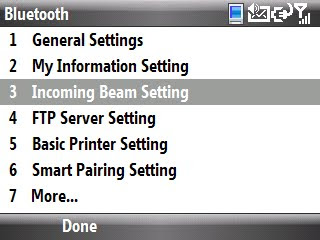
4. Remove the check icon from the Receive incoming beams check box by pressing the OK Key.
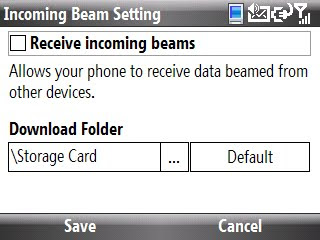
5. Hit the Left Soft Key to select Save which will bring you back to the Bluetooth Setting Master Menu.
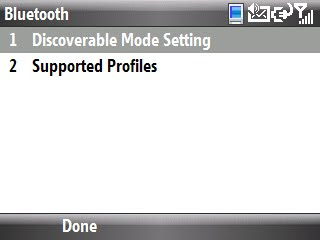
6. Press the 7 Key to select More.
7. Press the 1 Key to select Discoverable Mode Setting.
8. Change the default settings from Always to either a 1 min, 3 min or 5 min interval by clicking the Navigation Button/Jog Wheel to the right (3 o'clock position).
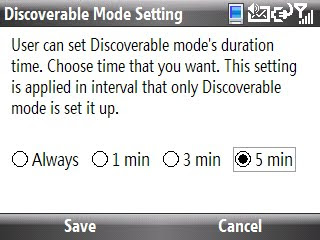
9. Press the Left Soft Key to select Save.
III. Change Email Synchronization Settings.
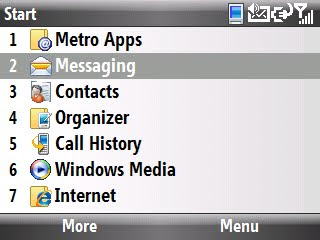
1. Press the Left Soft Key to select Start -> Messaging.
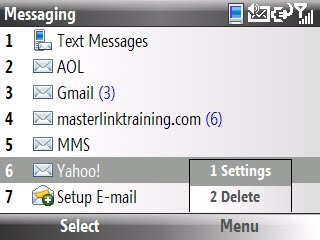
2. With the email account you want to change highlighted, press the Right Soft Key to select Menu and then press the 1 Key (or the OK Key) to select Settings.
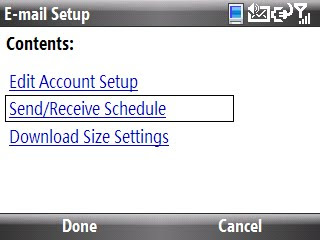
3. Highlight Send/Receive Schedule and press the OK Key to select.
4. Change the Automatic Send/Receive settings to either Manually or 2 Hours or more.
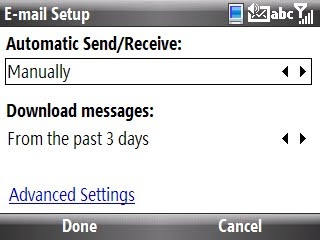
5. Press the Left Soft Key to select Done.
__________________________________________________
Do you want to see more tips like this one? Check out the m.Tip Library to find all the m.Tips in one convenient place.
I. Shut off Bluetooth when you aren't using it.
1. Press and hold the Lock Key to access the Quick List menu.
2. Scroll to the Wireless Manager and hit the Left Soft Key to choose Select.

3. If Bluetooth is ON, it will look like this:

4. To shut off Bluetooth, scroll to Bluetooth and press the OK Key.

II. Shut down your Bluetooth Receptivity when not in use.
1. Hit the Left Soft Key to select to Start -> Settings -> Connections.

2. Click the 2 Key to select Bluetooth.

3. Click the 3 Key to select Incoming Beam Setting.

4. Remove the check icon from the Receive incoming beams check box by pressing the OK Key.

5. Hit the Left Soft Key to select Save which will bring you back to the Bluetooth Setting Master Menu.
6. Press the 7 Key to select More.
7. Press the 1 Key to select Discoverable Mode Setting.

8. Change the default settings from Always to either a 1 min, 3 min or 5 min interval by clicking the Navigation Button/Jog Wheel to the right (3 o'clock position).

9. Press the Left Soft Key to select Save.
III. Change Email Synchronization Settings.
1. Press the Left Soft Key to select Start -> Messaging.

2. With the email account you want to change highlighted, press the Right Soft Key to select Menu and then press the 1 Key (or the OK Key) to select Settings.

3. Highlight Send/Receive Schedule and press the OK Key to select.

4. Change the Automatic Send/Receive settings to either Manually or 2 Hours or more.

5. Press the Left Soft Key to select Done.
__________________________________________________
Do you want to see more tips like this one? Check out the m.Tip Library to find all the m.Tips in one convenient place.
Thursday, January 28, 2010
Learn-In-A-Minute Video: Connect Your Samsung Code To Any Exchange Server You Want
Here is a brief tutorial providing you with the instructions you'll need if you want your Smartphone to get direct push email from any Microsoft Exchange Server (to get work related emails):
For anyone that is interested in written instructions on how to use the Ultimate Command Center, feel free to visit:
http://thecodeofmetropcs.blogspot.com/2010/01/mtip-did-you-know-you-can-get-emails.html
________________________________________________
Do You Have Another Minute To Learn Another Trick? If so, check out the Learn-In-A-Minute Video Library…
For anyone that is interested in written instructions on how to use the Ultimate Command Center, feel free to visit:
http://thecodeofmetropcs.blogspot.com/2010/01/mtip-did-you-know-you-can-get-emails.html
________________________________________________
Do You Have Another Minute To Learn Another Trick? If so, check out the Learn-In-A-Minute Video Library…
m.QandA: Where Your Questions Truly Matter
I'd like to take a moment to acknowledge anyone and everyone that has ever asked me a question in the past.
Your questions have often forced me to reach for new knowledge, challenge my own position and at times, to stretch my capabilities and imagination (ok, that might be pushing it a bit).
But you have all helped me to grow in the process and for that, I'm grateful.
It's for you that I dedicate and erect this new category in The (samsung) Code of Metro PCS called m.QandA---mQandA is short for mobile Questions & Answers.
This is now a dedicated section of this site where you or anyone else can ask all of your questions.
Let's begin with your first question, shall we?
Your questions have often forced me to reach for new knowledge, challenge my own position and at times, to stretch my capabilities and imagination (ok, that might be pushing it a bit).
But you have all helped me to grow in the process and for that, I'm grateful.
It's for you that I dedicate and erect this new category in The (samsung) Code of Metro PCS called m.QandA---mQandA is short for mobile Questions & Answers.
This is now a dedicated section of this site where you or anyone else can ask all of your questions.
Let's begin with your first question, shall we?
Wednesday, January 27, 2010
m.Tip: How To Delete An Email Account From Your Samsung Code
Somebody recently posted the following question, "how do I delete my email account from my phone?" which is the subject of this m.Tip.
How To Delete An Email Account From Your Smart Phone
1. Hit your Left Soft Key to select Start -> Messaging.
2. Highlight the email account you wish to delete and hit the Right Soft Key to select Menu -> Delete.
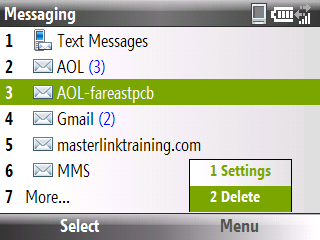
3. Hit the OK Key or the 2 Key to select Delete.
4. Hit the Left Soft Key to select Yes to confirm that you want to delete this email account and its contents.
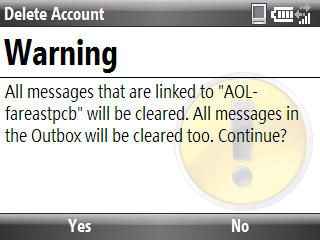
Vanquished!!!
__________________________________________
Do you want to see more tips like this one? Check out the m.Tip Library to find all the m.Tips in one convenient place.
How To Delete An Email Account From Your Smart Phone
1. Hit your Left Soft Key to select Start -> Messaging.
2. Highlight the email account you wish to delete and hit the Right Soft Key to select Menu -> Delete.

3. Hit the OK Key or the 2 Key to select Delete.
4. Hit the Left Soft Key to select Yes to confirm that you want to delete this email account and its contents.

Vanquished!!!
__________________________________________
Do you want to see more tips like this one? Check out the m.Tip Library to find all the m.Tips in one convenient place.
m.Tip: Want To Get Your Memory Back?
The latest in the Memory Saver Series (See What You Should Always Do When Downloading & Installing Applications On Your Samsung Code, How To Install Applications To Your SD Card Instead Of Your Smartphone's Memory, Want To Free Up Memory By Putting Your Ringtones On Your SD Card? and Have Your Samsung Code Store All Of Your Pics And Vids On Your SD Card Automatically to get other ideas about how you to recover your smartphone's on-board memory back), here's a tip that could help you regain a meaningful chunk of memory back (particularly if you haven't done it yet).
The "closet" that I suggest needs some cleaning is your favorite browser's cache folder and page view history. With this said, here are instructions on how to clear your history and cache on three of the more popular mobile web browsers (IE, Opera and Skyfire).
Internet Explorer House Cleaning
1. Open IE (Go to Start -> Internet -> Internet Explorer)
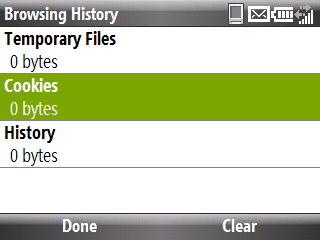
2. Hit your Right Soft Key to select Menu, then go to Tools -> Options until the following screen appears:
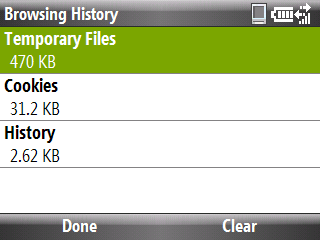
3. With Temporary Files highlighted, hit the Right Soft Key to Select Clear.
4. Hit the Left Soft Key to select Yes to confirm that you want delete all the temporary Internet Explorer files.
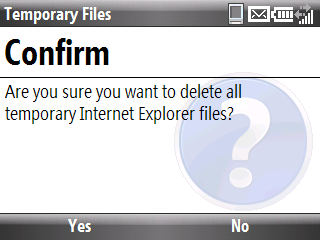
5. Repeat steps 3 & 4 to delete the Cookies and History folders.
Opera House Cleaning
1. Open your Opera browser.
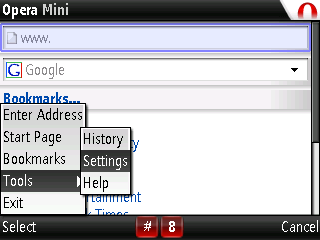
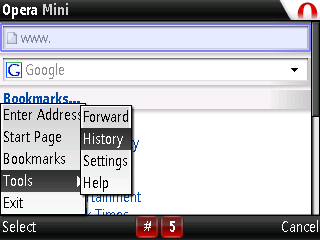
2. Hit your Left Soft Key to select Menu -> Tools -> History.
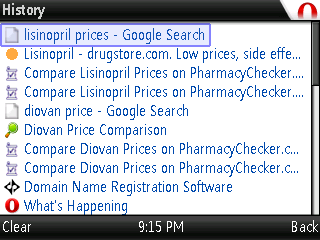
3. Hit your Left Soft Key to select Clear.
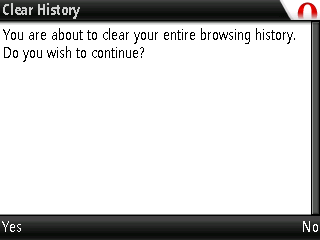
4. Hit your Left Soft Key to select Yes.
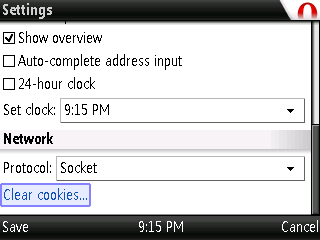
5. To clear cookies, hit your Left Soft Key to select Menu -> Tools -> Settings.
6. Scroll to the bottom of the page and highlight Clear Cookies and then hit your OK Key to select.
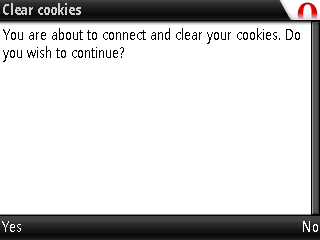
7. Hit your Left Soft Key to select Yes to delete your cookies.
Skyfire House Cleaning
1. Open your Skyfire browser.
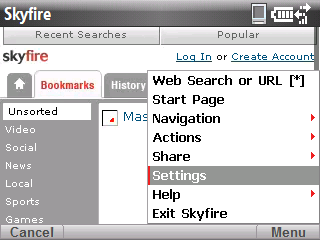
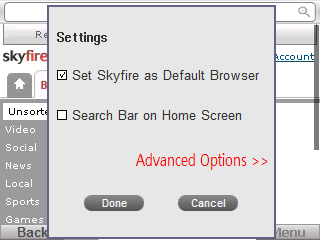
2. Hit you Right Soft Key to select Menu -> Settings.
3. Use your Navigation Button/Jog Wheel to scroll and select Advanced Options (you'll know when it is selected because it will change from blue to red).
4. Use your Navigation Button/Jog Wheel to hover the pointer over the Clear Cookies button and hit the OK Key to delete cookies (a pop up window will appear telling you that you were successful).
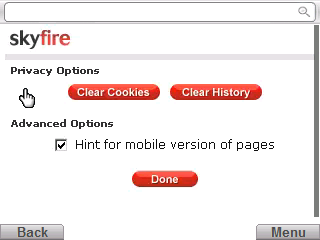
5. Hover the pointer over the Clear History button and hit the OK Key to delete history.
How much memory did you recover?
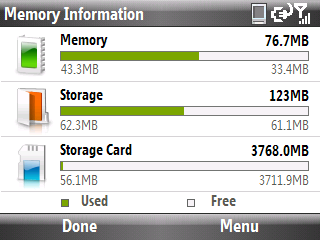
Here's my before (bear in mind that I clear this every week, so my results will prove to be less dramatic then someone doing it for the first time):
Here's my after:
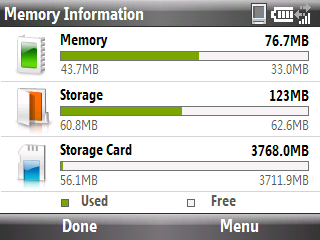
I recovered 1.5MB in storage space/smartphone memory, how much did you recover? Let me know by leaving a comment below.
__________________________________________
Do you want to see more tips like this one? Check out the m.Tip Library to find all the m.Tips in one convenient place.
The "closet" that I suggest needs some cleaning is your favorite browser's cache folder and page view history. With this said, here are instructions on how to clear your history and cache on three of the more popular mobile web browsers (IE, Opera and Skyfire).
Internet Explorer House Cleaning
1. Open IE (Go to Start -> Internet -> Internet Explorer)
2. Hit your Right Soft Key to select Menu, then go to Tools -> Options until the following screen appears:

3. With Temporary Files highlighted, hit the Right Soft Key to Select Clear.
4. Hit the Left Soft Key to select Yes to confirm that you want delete all the temporary Internet Explorer files.

5. Repeat steps 3 & 4 to delete the Cookies and History folders.

Opera House Cleaning
1. Open your Opera browser.
2. Hit your Left Soft Key to select Menu -> Tools -> History.

3. Hit your Left Soft Key to select Clear.

4. Hit your Left Soft Key to select Yes.

5. To clear cookies, hit your Left Soft Key to select Menu -> Tools -> Settings.

6. Scroll to the bottom of the page and highlight Clear Cookies and then hit your OK Key to select.

7. Hit your Left Soft Key to select Yes to delete your cookies.

Skyfire House Cleaning
1. Open your Skyfire browser.
2. Hit you Right Soft Key to select Menu -> Settings.

3. Use your Navigation Button/Jog Wheel to scroll and select Advanced Options (you'll know when it is selected because it will change from blue to red).

4. Use your Navigation Button/Jog Wheel to hover the pointer over the Clear Cookies button and hit the OK Key to delete cookies (a pop up window will appear telling you that you were successful).

5. Hover the pointer over the Clear History button and hit the OK Key to delete history.
How much memory did you recover?
Here's my before (bear in mind that I clear this every week, so my results will prove to be less dramatic then someone doing it for the first time):

Here's my after:

I recovered 1.5MB in storage space/smartphone memory, how much did you recover? Let me know by leaving a comment below.
__________________________________________
Do you want to see more tips like this one? Check out the m.Tip Library to find all the m.Tips in one convenient place.
Subscribe to:
Posts (Atom)
