
In this follow up tutorial (see Do You Want To Change Your Personality for the first part of this lesson), Akehsay takes us all for a deeper dive into how to change the theme scheme using .ZIP and .RAR themes on our Samsung Codes:
__________________________________________
Do you want to see more tips like this one? Check out the m.Tip Library to find all the m.Tips in one convenient place.
Monday, January 25, 2010

m.Live Wassup Map Project: Should You Really Care?
The first marker on the m.Live Wassup Map is up, if you check it out, you will notice:
- The number of bars (signal strength) received in the area.
- The verifiable Kbps speed (See Do You Know How Fast You Are for further details) in the area.
It looks like this:

The rest of the markers that I put on the m.Live Wassup Map will bear a similar format from now on.
What's NOT important is where I or anyone else lives (don't enter your real home address please) or works (same goes here), it's measuring how the Metro PCS service really works by capturing to relative bits of information, signal strength and transfer speed.
Want to help this map grow? Let me know by leaving a message below.
- The number of bars (signal strength) received in the area.
- The verifiable Kbps speed (See Do You Know How Fast You Are for further details) in the area.
It looks like this:

The rest of the markers that I put on the m.Live Wassup Map will bear a similar format from now on.
What's NOT important is where I or anyone else lives (don't enter your real home address please) or works (same goes here), it's measuring how the Metro PCS service really works by capturing to relative bits of information, signal strength and transfer speed.
Want to help this map grow? Let me know by leaving a message below.
Do You Want To Know This?
The (samsung) Code of Metro PCS turned 3 months old yesterday. Only an infant in many respects, this site has seen its share of both growing pains and growth spurts.
Here is some statistical ramblings and factoids that you might find of interest:
- If you visited this site, you were one of 3,045 other visitors that did in the last 3 months.
- Out of the 3,045 visitors that have visited, 1,508 of you come back more then once (THANK YOU).
- If you visited this site, you are either from the United States, India, Canada, Russia, Germany, Switzerland, Netherlands, Philippines, Mexico, Australia, Belgium, Brazil, Indonesia, Argentina, Malaysia, Poland, France, Turkey, Singapore, South Korea, Czech Republic, Japan or Peru (listed from most to least).
- 50.48% of you that visited this site came back again the same day---38.13% of you that came back once, came back a second time the same day.
The bottom line?
Half of you appear to range from liking to really liking this site and the other half of you just don't give a sh*t!
Sounds about right...
Here is some statistical ramblings and factoids that you might find of interest:
- If you visited this site, you were one of 3,045 other visitors that did in the last 3 months.
- Out of the 3,045 visitors that have visited, 1,508 of you come back more then once (THANK YOU).
- If you visited this site, you are either from the United States, India, Canada, Russia, Germany, Switzerland, Netherlands, Philippines, Mexico, Australia, Belgium, Brazil, Indonesia, Argentina, Malaysia, Poland, France, Turkey, Singapore, South Korea, Czech Republic, Japan or Peru (listed from most to least).
- 50.48% of you that visited this site came back again the same day---38.13% of you that came back once, came back a second time the same day.
The bottom line?
Half of you appear to range from liking to really liking this site and the other half of you just don't give a sh*t!
Sounds about right...
Sunday, January 24, 2010
TimeSaver's Tip: When Being A Zero Can Help You When Calling Internationally
As a result of living and working both in Southeast Asia and Northern Europe, I have a lot of "connections" around the world that I want to stay in touch with.
I was an early adopter of Skype and that was my de facto method of staying in touch with my vendors, colleagues and friends.
I nearly leaked myself when Metro PCS came out with their 5/Month Unlimited International Program plan option and I could call my "connections" anytime I wanted, for as long as I wanted, without being bound to my laptop or PC.
For those that also have the plan extension, you know that dialing "011" can be replaced with "+" character, but do you add "+" sign by using Fn + Y keys?
If you do, you are really going to appreciate this timesaver.
From anywhere on the home screen (you can be in the dialer too), press and hold the 0 key for 3 seconds. First the dialer will open and a 0 will appear, but before the end of the 3 seconds, the 0 will covert to a + sign.
________________________________________________
If you liked this Timesaver, check out the rest at the Timesaver’s Almanac.
I was an early adopter of Skype and that was my de facto method of staying in touch with my vendors, colleagues and friends.
I nearly leaked myself when Metro PCS came out with their 5/Month Unlimited International Program plan option and I could call my "connections" anytime I wanted, for as long as I wanted, without being bound to my laptop or PC.
For those that also have the plan extension, you know that dialing "011" can be replaced with "+" character, but do you add "+" sign by using Fn + Y keys?
If you do, you are really going to appreciate this timesaver.
From anywhere on the home screen (you can be in the dialer too), press and hold the 0 key for 3 seconds. First the dialer will open and a 0 will appear, but before the end of the 3 seconds, the 0 will covert to a + sign.
________________________________________________
If you liked this Timesaver, check out the rest at the Timesaver’s Almanac.
m.Tip: Did You Know You Can Get Emails From Any Exchange Server You Want?
Just like with Google, MSN, AOL, etc., your Samsung Code can receive direct push email from any Exchange Server you have access to (this is most often the case when someone tries to access work based email communications).
Although in most cases, the IT Department would set up your Exchange Email Account on your Smartphone, I can show you how you can become your own Exchange Server Network Administrator (if you have the server information and other settings necessary to set up your account).
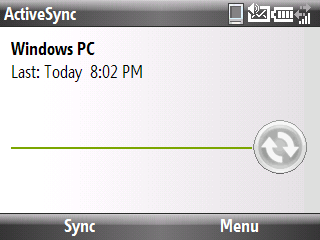
1. Press the Left Soft Key to select Start -> ActiveSync.
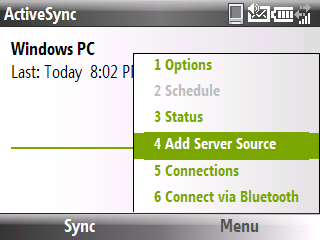
2. Press the Right Soft Key to select Menu and highlight Add Server Source.
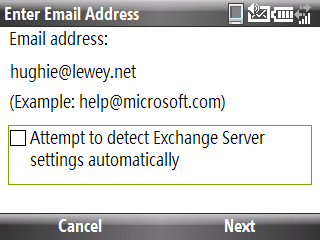
3. Enter your Exchange Server E-Mail Address in the Email address text box and hit your Right Soft Key to select Next.
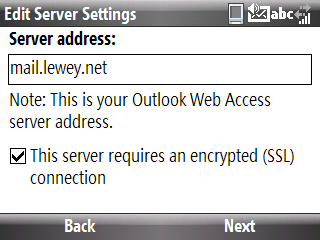
4. Enter your Exchange Mail Server Address in the Server address text box (this would be the same server address you use for Outlook Web Access) and hit your Right Soft Key to select Next.
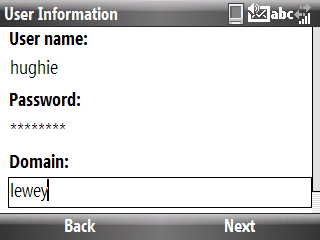
5. Enter the Exchange Server User Password and Exchange Server Domain Name in the provided text boxes and hit your Right Soft Key to select Next.
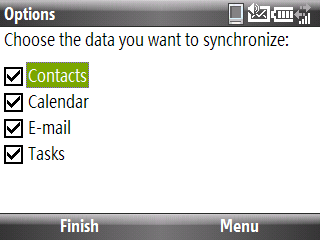
6. Now your Samsung Code can synchronize Email, Contacts, Calender and Tasks wirelessly with the approved Exchange Server.
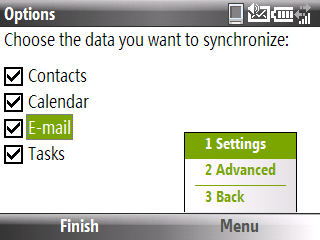
7. While highlighting Email from the scroll down menu, hit your Right Soft Key to select Menu.
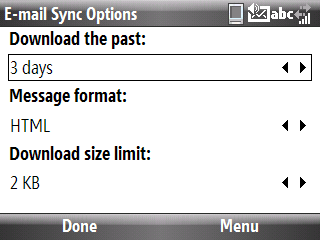
8. If you select Settings from the drop down menu, you can change the message format, limit the size of downloads, determine synchronization frequency and more.
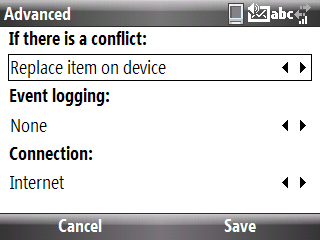
9. If you select Advanced from the drop down menu, you can change conflict resolution settings, event logging and more.
__________________________________________
Do you want to see more tips like this one? Check out the m.Tip Library to find all the m.Tips in one convenient place.
Although in most cases, the IT Department would set up your Exchange Email Account on your Smartphone, I can show you how you can become your own Exchange Server Network Administrator (if you have the server information and other settings necessary to set up your account).
1. Press the Left Soft Key to select Start -> ActiveSync.

2. Press the Right Soft Key to select Menu and highlight Add Server Source.

3. Enter your Exchange Server E-Mail Address in the Email address text box and hit your Right Soft Key to select Next.

4. Enter your Exchange Mail Server Address in the Server address text box (this would be the same server address you use for Outlook Web Access) and hit your Right Soft Key to select Next.

5. Enter the Exchange Server User Password and Exchange Server Domain Name in the provided text boxes and hit your Right Soft Key to select Next.

6. Now your Samsung Code can synchronize Email, Contacts, Calender and Tasks wirelessly with the approved Exchange Server.

7. While highlighting Email from the scroll down menu, hit your Right Soft Key to select Menu.

8. If you select Settings from the drop down menu, you can change the message format, limit the size of downloads, determine synchronization frequency and more.

9. If you select Advanced from the drop down menu, you can change conflict resolution settings, event logging and more.

__________________________________________
Do you want to see more tips like this one? Check out the m.Tip Library to find all the m.Tips in one convenient place.
TimeSaver's Tip: Use Speed To Get Where You Want Fast
This article is for those that might have maxed out the capacity of The Ultimate Command Center (a customizable system that allows you to automate all your repetitive tasks---check out Learn How To Create Any Shortcut You Want for further details).
Working with Speed Dial isn't restricted to putting your friends, family and co-workers on the "short list", you can add anything you have on your Start Menu to the Speed Dial Directory.
Adding anything located on your Start Menu is as easy as:
1. Hit the Left Soft Key to select Start.
2. Scroll the Jog Wheel/Navigation Wheel until you have highlighted the folder you are interested in adding to the Speed Dial Directory.
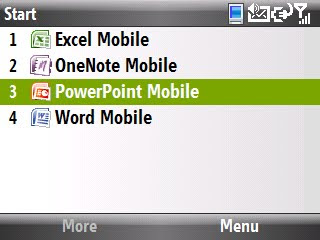
3. Hit the Right Soft Key to select Menu and press 1 (or the OK Key) to select Add Speed Dial.
________________________________________________
If you liked this Timesaver, check out the rest at the Timesaver’s Almanac.
Working with Speed Dial isn't restricted to putting your friends, family and co-workers on the "short list", you can add anything you have on your Start Menu to the Speed Dial Directory.
Adding anything located on your Start Menu is as easy as:
1. Hit the Left Soft Key to select Start.
2. Scroll the Jog Wheel/Navigation Wheel until you have highlighted the folder you are interested in adding to the Speed Dial Directory.

3. Hit the Right Soft Key to select Menu and press 1 (or the OK Key) to select Add Speed Dial.

4. Type what you want to name the shortcut in the Name Text Box.
5. Select the keypad/number selection you want to assign to your new shortcut. Use the Jog Wheel/Navigation Button to scroll through your options (our use the OK Key to see all of your options on one screen).
6. Hit the Left Soft Key to select Done.
7. To verify that your new shortcut has been added to the Speed Dial Directory, go to Start -> Accessories -> Speed Dial.
________________________________________________
If you liked this Timesaver, check out the rest at the Timesaver’s Almanac.
m.Tip: Protect Your Mobile Ass...ets
The Situation (no, not the one from Jersey Shore): You didn't purchase insurance when you bought your Samsung Code.
The Problem: You just lost your smartphone.
This would suck on so many different levels---coming up with the money to pay for another Smartphone, your privacy potentially being compromised and spending the time and money to reinstall/replace the applications you installed on your Samsung Code to name just a few of the headaches that beset anyone that has lost their smartphone.
Even if you haven't invested in the insurance coverage for your smartphone, there are precautions you can take to "protect your mobile ass...ets".
Follow these steps to increase your smartphone's chances of being found when it's lost (and increase the protection against "mobile privacy invasion"):
- PRECAUTION #1-Back up your data before leaving your house or office: With a service like Microsoft's MyPhone, you can have a back up of your Contacts, Calender, Tasks, Text Messages (SMS), Favorites, Videos, Music and Documents in seconds ensuring that you can restore all of this data if all of the following precautions should fail (don't bank on using the Ring Phone, Find Phone, Lock Phone or Erase Phone features of My Phone to help you out because Metro PCS currently isn't a recognized MyPhone Operator).
- PRECAUTION #2-Back up "everything else" if you can: Applications/Services like SPB Back and Sprite allow you to take a virtual snapshot of EVERYTHING on your Samsung Code and converts it to a executable file (.exe file) that you can tuck away for safe keeping just in case none of the other precautions work. Even though you'll need to pay for these apps/services, restoring all of your original settings in moments will save you both time and money in the end (this will also prove to be priceless for these that intend to make registry changes).
- PRECAUTION #3-Lock your smartphone when you aren't using it: You can restrict access to your Smartphone with anyone that doesn't know your password by using the Device Lock feature. You can activate this feature by following these simple steps:
1. Find the Device Lock Feature (Go to Start -> Settings -> Security -> Device Lock).
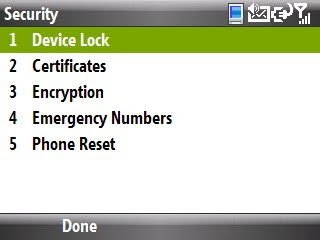
2. Check the Prompt if device is unused for check box.
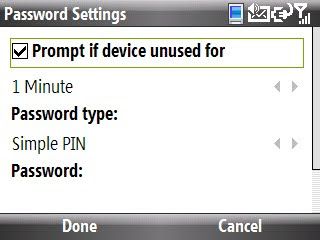
3. Select a inactivity time limit (how long your smartphone will be inactive before the Device Lock feature is activated) by using the Jog Wheel/Navigation Button (you can choose from 1 Minute to 24 Hours).
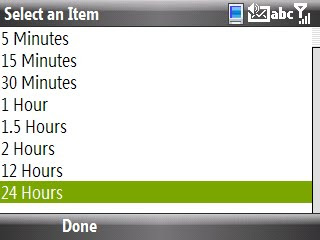
4. Select the Password Type you would like to use (you can choose from Simple Pin [numeric password] or Strong alphanumeric [a password with both numbers and letters]).
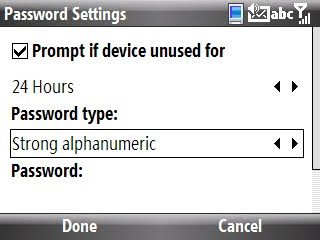
5. Enter your choosen Password (when you type your password, you will be able to see the letters/numbers for only a moment, then your password with be converted to protected status [*******]).
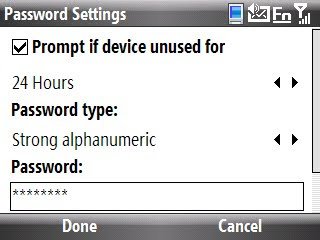
6. Confirm your Password.
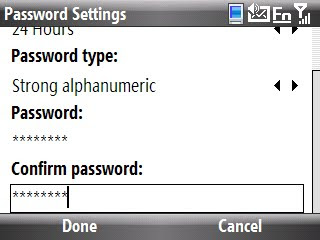
7. Hit your Left Soft Key to select Done to save Device Lock setup settings.
- PRECAUTION #4-Put your SIM card on lockdown too: By using Encryption function, you can prevent anyone from viewing/reading/copying the files on your SD card on anything other then your Samsung Code (and with Device Lock activated, no one will be able to).
You can activate this feature by following these simple steps:
1. Find the Device Lock Feature (Go to Start -> Settings -> Security -> Encryption).
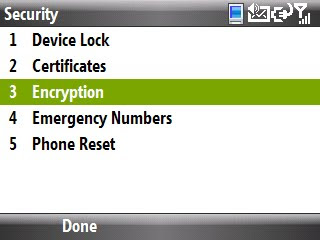
2. Check the Encrypt files when placed on storage cards check box.
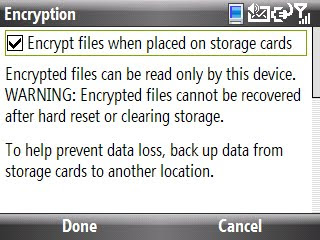
3. Hit the Left Soft Key to select Done to save settings.
- PRECAUTION #5-Make it easy for someone to "pay it forward" with on of the world's largest FREE lost and found departments: Up to know, we have backed up everything (or at least our data) and set up "Fort Knox" like barriers to entry to your Smartphone and its data, now we need to focus on the "found" equation (or getting found when your smartphone is lost).
Do you believe that mankind is made up of mostly good and honest people? Services like TigerTag allow you take advantage of the "Power of Goodwill". The premise of the service is simply enough---put a tag with a unique ID and toll free number on your Smartphone and when you lose it, the Good Samaritan can either call or go on the web to get your property back to you.
The service claims to have a 75% return rate and the service is FREE to use and FREE to the Good Samaritan.
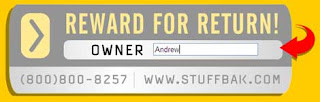
 - PRECAUTION #6-Appeal to someone else's greed with the world's biggest PAID lost and found department: Like TigerTag, StuffBak hopes there is good in everyone, but just in case your smartphone happens to be found by a "bad apple", it offers an reward (and you can add your own reward to the mix to increase the bounty) to inspire the finder to "do the right thing".
Again like TigerTag, StuffBak claims a 75% return rate and even though the service costs a little money (less then five bucks), the reward feature of StuffBak's service does have a positive impact on improving the return rate (which means the odds that your smartphone will be "found" are higher then it remaining "lost").
We all remember learning about Benjamen Franklin in school and almost everyone remembers one of his most famous quotes, "an ounce of prevention is worth a pound of cure".
I strongly suggest that this principle certainly applies in this case...
__________________________________________
Do you want to see more tips like this one? Check out the m.Tip Library to find all the m.Tips in one convenient place.
The Problem: You just lost your smartphone.
This would suck on so many different levels---coming up with the money to pay for another Smartphone, your privacy potentially being compromised and spending the time and money to reinstall/replace the applications you installed on your Samsung Code to name just a few of the headaches that beset anyone that has lost their smartphone.
Even if you haven't invested in the insurance coverage for your smartphone, there are precautions you can take to "protect your mobile ass...ets".
Follow these steps to increase your smartphone's chances of being found when it's lost (and increase the protection against "mobile privacy invasion"):
- PRECAUTION #1-Back up your data before leaving your house or office: With a service like Microsoft's MyPhone, you can have a back up of your Contacts, Calender, Tasks, Text Messages (SMS), Favorites, Videos, Music and Documents in seconds ensuring that you can restore all of this data if all of the following precautions should fail (don't bank on using the Ring Phone, Find Phone, Lock Phone or Erase Phone features of My Phone to help you out because Metro PCS currently isn't a recognized MyPhone Operator).
- PRECAUTION #2-Back up "everything else" if you can: Applications/Services like SPB Back and Sprite allow you to take a virtual snapshot of EVERYTHING on your Samsung Code and converts it to a executable file (.exe file) that you can tuck away for safe keeping just in case none of the other precautions work. Even though you'll need to pay for these apps/services, restoring all of your original settings in moments will save you both time and money in the end (this will also prove to be priceless for these that intend to make registry changes).
- PRECAUTION #3-Lock your smartphone when you aren't using it: You can restrict access to your Smartphone with anyone that doesn't know your password by using the Device Lock feature. You can activate this feature by following these simple steps:
1. Find the Device Lock Feature (Go to Start -> Settings -> Security -> Device Lock).

2. Check the Prompt if device is unused for check box.

3. Select a inactivity time limit (how long your smartphone will be inactive before the Device Lock feature is activated) by using the Jog Wheel/Navigation Button (you can choose from 1 Minute to 24 Hours).

4. Select the Password Type you would like to use (you can choose from Simple Pin [numeric password] or Strong alphanumeric [a password with both numbers and letters]).

5. Enter your choosen Password (when you type your password, you will be able to see the letters/numbers for only a moment, then your password with be converted to protected status [*******]).

6. Confirm your Password.

7. Hit your Left Soft Key to select Done to save Device Lock setup settings.
- PRECAUTION #4-Put your SIM card on lockdown too: By using Encryption function, you can prevent anyone from viewing/reading/copying the files on your SD card on anything other then your Samsung Code (and with Device Lock activated, no one will be able to).
You can activate this feature by following these simple steps:
1. Find the Device Lock Feature (Go to Start -> Settings -> Security -> Encryption).

2. Check the Encrypt files when placed on storage cards check box.

3. Hit the Left Soft Key to select Done to save settings.
- PRECAUTION #5-Make it easy for someone to "pay it forward" with on of the world's largest FREE lost and found departments: Up to know, we have backed up everything (or at least our data) and set up "Fort Knox" like barriers to entry to your Smartphone and its data, now we need to focus on the "found" equation (or getting found when your smartphone is lost).
Do you believe that mankind is made up of mostly good and honest people? Services like TigerTag allow you take advantage of the "Power of Goodwill". The premise of the service is simply enough---put a tag with a unique ID and toll free number on your Smartphone and when you lose it, the Good Samaritan can either call or go on the web to get your property back to you.
The service claims to have a 75% return rate and the service is FREE to use and FREE to the Good Samaritan.
 - PRECAUTION #6-Appeal to someone else's greed with the world's biggest PAID lost and found department: Like TigerTag, StuffBak hopes there is good in everyone, but just in case your smartphone happens to be found by a "bad apple", it offers an reward (and you can add your own reward to the mix to increase the bounty) to inspire the finder to "do the right thing".
Again like TigerTag, StuffBak claims a 75% return rate and even though the service costs a little money (less then five bucks), the reward feature of StuffBak's service does have a positive impact on improving the return rate (which means the odds that your smartphone will be "found" are higher then it remaining "lost").

We all remember learning about Benjamen Franklin in school and almost everyone remembers one of his most famous quotes, "an ounce of prevention is worth a pound of cure".
I strongly suggest that this principle certainly applies in this case...
__________________________________________
Do you want to see more tips like this one? Check out the m.Tip Library to find all the m.Tips in one convenient place.
Subscribe to:
Posts (Atom)
