Wednesday, January 27, 2010

Timesaver's Tip: The Many Personalities Of The Messaging Key

Did you know the Messaging Key provides two shortcuts at your disposal?


If you just Press the Messaging Key, your text message history will appear:


But if you Press and Hold the Messaging Key, you will can compose a new SMS/text message:


________________________________________________
If you liked this Timesaver, check out the rest at the Timesaver’s Almanac.

m.Tip: How To Have Security Without Needing To Remember Anything

But a password...

I recently wrote about how Samsung Code owners could take measures to evoke certain security measures to prevent loss, theft or privacy invasion (see Protect Your Mobile Ass...ets for further details), but none of this matters if you just "forget about it".

If this sounds like you, then there is something you can do that would allow you to "set it and forget it" and this feature is called the Automatic Device Lock.

This feature allows you to set your Samsung Code to automatically lock itself (at a time interval that you predetermine) and allows you to take extra measures to minimize the "hackability" of your smartphone in the event of loss or theft.

Although I did mention this feature in my previous article (See Precaution #3 for further details), I think a "deeper dive" is in order (if for nothing else, to stress to the few the importance of setting up some sort of line of defense for your smartphone).

Follow these steps to set up your first line of defense against theft and loss and "set it and forget it":

1. Find the Device Lock Feature (Go to Start -> Settings -> Security -> Device Lock).
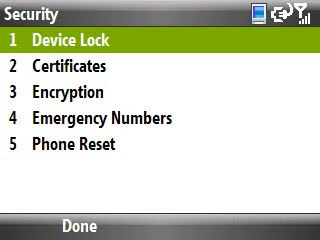

2. Check the Prompt if device is unused for check box.
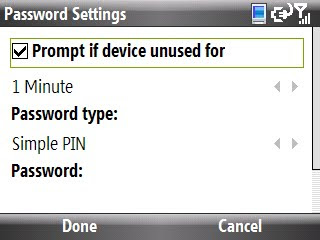

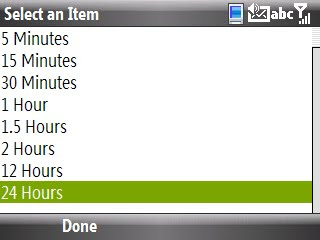
3. Select a inactivity time limit (how long your smartphone will be inactive before the Device Lock feature is activated) by using the Jog Wheel/Navigation Button (you can choose from 1 Minute to 24 Hours).
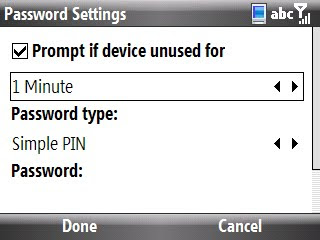

If you want to scroll your options quicker without using the Jog Wheel/Navigation Button, simply hit the OK Key to access this scroll down menu:

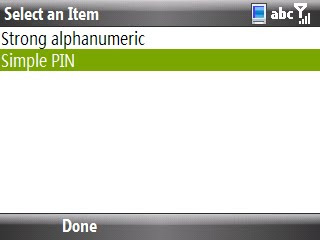
4. Select the Password Type you would like to use (you can choose from Simple Pin [numeric password] or Strong alphanumeric [a password with both numbers and letters]).
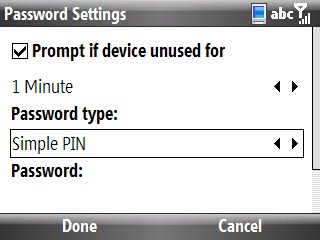

Use the OK Key for quicker access to your options:

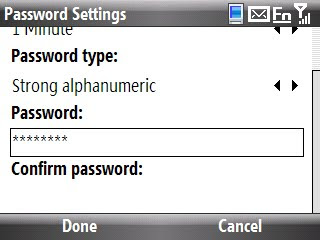
5. Enter your choosen Password (when you type your password, you will be able to see the letters/numbers for only a moment, then your password with be converted to protected status [*******]).

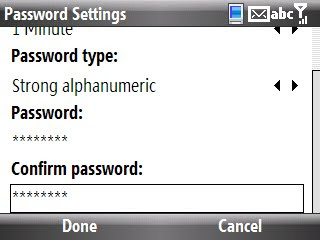
6. Confirm your Password.

7. Hit your Left Soft Key to select Done to save Device Lock setup setting.

8. Hit your Left Soft Key to select Yes to save the password settings.
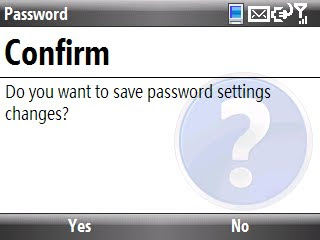

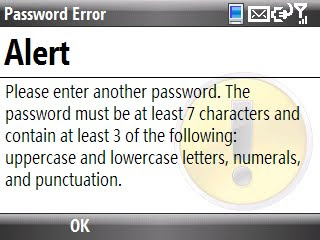
9. If you chose to use the "strong alphanumberic" password type, your password must contain a minimum of 7 characters and contain at least three of the following character types:

- Uppercase Letters
- Lowercase Letters
- Numerals
- Punctuation

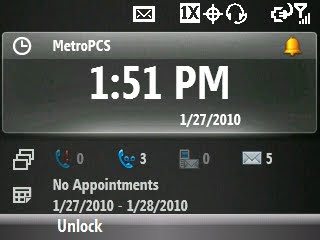
10. Once your Samsung Code reaches your preset inactivity time limit, your homescreen will look like this:

11. To gain access to your smartphone, hit your Left Soft Key to select Unlock and then you will be prompted to enter your password.
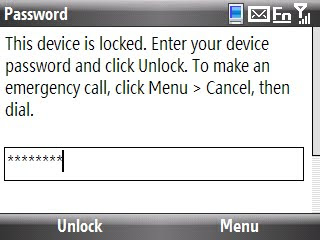

That's how you create and use security access with your Samsung Code.

What if you are in a "safe place" (home, friend's house, etc.) and don't need the added security?

Deactiviting the Automatic Device Lock is easy (but not so easy for outsiders that don't know the "magic word" [the password]) if you follow these steps:

1. Go back to the Device Lock Feature (Go to Start -> Settings -> Security -> Device Lock).

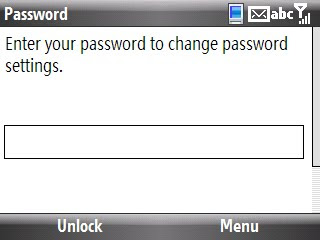
2. Once you click on Device Lock, you will be prompted to enter your password to access the screen and make any changes (this is how we keep the "undesirables" out).

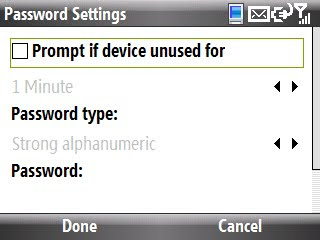
3. Remove the check from the Prompt if device is unused for check box and hit your Left Soft Key to select Done.

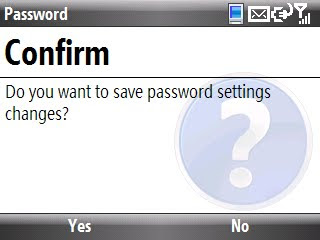
4. Confirm that you want to make these changes by hitting the Left Soft Key and selecting Yes.

Security system deactivated...

If you are saying to yourself, "This sounds great and all, but I don't want to miss anything if I do this", then don't fret. You can still receive and make (if the number is on your Emergency List) calls even if your Samsung Code is locked.
__________________________________________
Do you want to see more tips like this one? Check out the m.Tip Library to find all the m.Tips in one convenient place.

Monday, January 25, 2010

m.Tip: Do You Want To Change Your Personality (Part 2)?

In this follow up tutorial (see Do You Want To Change Your Personality for the first part of this lesson), Akehsay takes us all for a deeper dive into how to change the theme scheme using .ZIP and .RAR themes on our Samsung Codes:


__________________________________________
Do you want to see more tips like this one? Check out the m.Tip Library to find all the m.Tips in one convenient place.

m.Live Wassup Map Project: Should You Really Care?

The first marker on the m.Live Wassup Map is up, if you check it out, you will notice:

- The number of bars (signal strength) received in the area.
- The verifiable Kbps speed (See Do You Know How Fast You Are for further details) in the area.

It looks like this:


The rest of the markers that I put on the m.Live Wassup Map will bear a similar format from now on.

What's NOT important is where I or anyone else lives (don't enter your real home address please) or works (same goes here), it's measuring how the Metro PCS service really works by capturing to relative bits of information, signal strength and transfer speed.

Want to help this map grow? Let me know by leaving a message below.

Do You Want To Know This?

The (samsung) Code of Metro PCS turned 3 months old yesterday. Only an infant in many respects, this site has seen its share of both growing pains and growth spurts.

Here is some statistical ramblings and factoids that you might find of interest:

- If you visited this site, you were one of 3,045 other visitors that did in the last 3 months.
- Out of the 3,045 visitors that have visited, 1,508 of you come back more then once (THANK YOU).
- If you visited this site, you are either from the United States, India, Canada, Russia, Germany, Switzerland, Netherlands, Philippines, Mexico, Australia, Belgium, Brazil, Indonesia, Argentina, Malaysia, Poland, France, Turkey, Singapore, South Korea, Czech Republic, Japan or Peru (listed from most to least).
- 50.48% of you that visited this site came back again the same day---38.13% of you that came back once, came back a second time the same day.

The bottom line?

Half of you appear to range from liking to really liking this site and the other half of you just don't give a sh*t!

Sounds about right...

Sunday, January 24, 2010

TimeSaver's Tip: When Being A Zero Can Help You When Calling Internationally

As a result of living and working both in Southeast Asia and Northern Europe, I have a lot of "connections" around the world that I want to stay in touch with.

I was an early adopter of Skype and that was my de facto method of staying in touch with my vendors, colleagues and friends.

I nearly leaked myself when Metro PCS came out with their 5/Month Unlimited International Program plan option and I could call my "connections" anytime I wanted, for as long as I wanted, without being bound to my laptop or PC.

For those that also have the plan extension, you know that dialing "011" can be replaced with "+" character, but do you add "+" sign by using Fn + Y keys?

If you do, you are really going to appreciate this timesaver.

From anywhere on the home screen (you can be in the dialer too), press and hold the 0 key for 3 seconds. First the dialer will open and a 0 will appear, but before the end of the 3 seconds, the 0 will covert to a + sign.

________________________________________________
If you liked this Timesaver, check out the rest at the Timesaver’s Almanac.

m.Tip: Did You Know You Can Get Emails From Any Exchange Server You Want?

Just like with Google, MSN, AOL, etc., your Samsung Code can receive direct push email from any Exchange Server you have access to (this is most often the case when someone tries to access work based email communications).

Although in most cases, the IT Department would set up your Exchange Email Account on your Smartphone, I can show you how you can become your own Exchange Server Network Administrator (if you have the server information and other settings necessary to set up your account).

1. Press the Left Soft Key to select Start -> ActiveSync.


2. Press the Right Soft Key to select Menu and highlight Add Server Source.


3. Enter your Exchange Server E-Mail Address in the Email address text box and hit your Right Soft Key to select Next.


4. Enter your Exchange Mail Server Address in the Server address text box (this would be the same server address you use for Outlook Web Access) and hit your Right Soft Key to select Next.


5. Enter the Exchange Server User Password and Exchange Server Domain Name in the provided text boxes and hit your Right Soft Key to select Next.


6. Now your Samsung Code can synchronize Email, Contacts, Calender and Tasks wirelessly with the approved Exchange Server.


7. While highlighting Email from the scroll down menu, hit your Right Soft Key to select Menu.


8. If you select Settings from the drop down menu, you can change the message format, limit the size of downloads, determine synchronization frequency and more.


9. If you select Advanced from the drop down menu, you can change conflict resolution settings, event logging and more.


__________________________________________
Do you want to see more tips like this one? Check out the m.Tip Library to find all the m.Tips in one convenient place.

can you hear me now?

Followers